
- How the rebranded Wi-Fi Assist works in iOS 27
- Setting it globally or per network
- Why ad blockers can trip it up
Wi-Fi Assist has been a quiet workhorse since iOS 9, hopping onto cellular when your Wi-Fi stalls so a page doesn’t just hang there. iOS 27 rebrands it as Connectivity Assist and promises to make the handoff invisible and more consistent – in theory, you shouldn’t notice when your phone switches from Wi-Fi to cellular and back. Pro users who fiddle with their DNS settings might find it limiting, but for the rest of us it’s a seamless way to stay connected.
What Connectivity Assist does
If your Wi-Fi network stops responding, your iPhone temporarily switches to 4G or 5G to keep things moving, then switches back once Wi-Fi is behaving again. It’s designed to work in the background without you having to do anything.
Turning it on or off per network
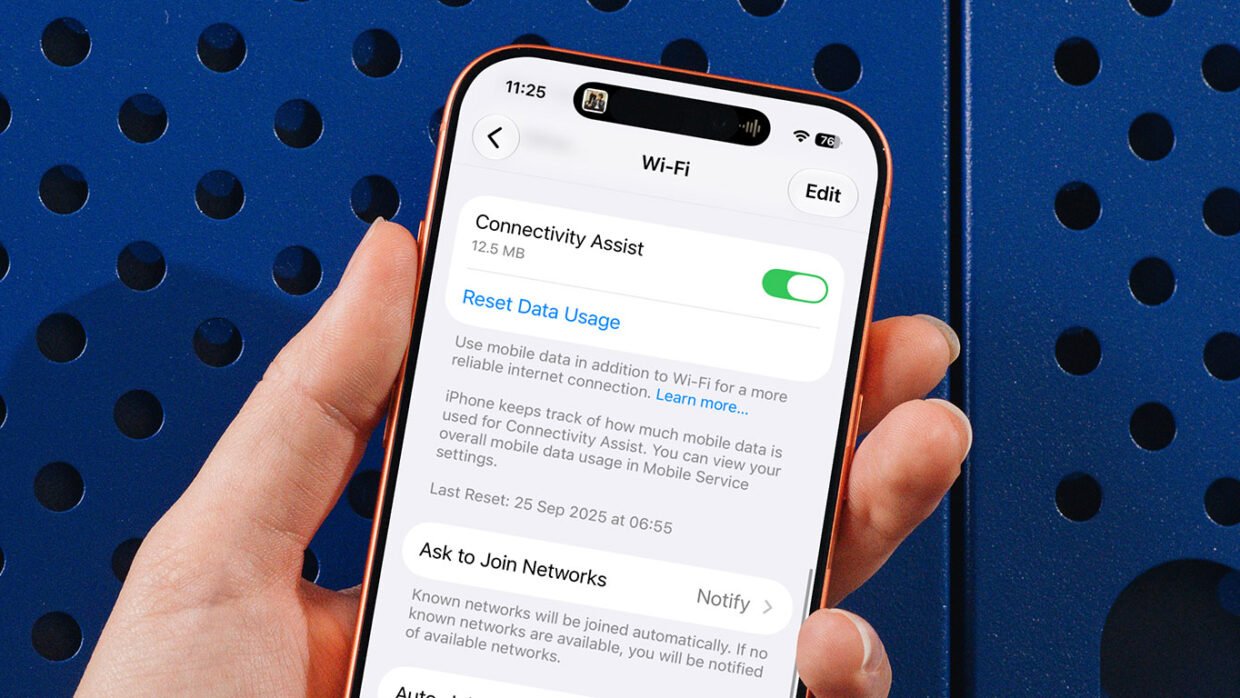
There’s a global toggle at Settings > Wi-Fi > Connectivity Assist, but you can also override it network by network. Head to Settings > Wi-Fi > [network name] > Use Cellular Data with Wi-Fi Instead to switch it off for a network you trust – home Wi-Fi, say – while leaving it on for spottier connections like the office or a coffee shop. Or the other way round.
Checking how much data it’s using
The main Connectivity Assist settings page also shows how much cellular data the feature has used stepping in for Wi-Fi, so you can keep an eye on what it’s costing you against your data allowance.
One thing to watch for
If you use system-level ad blocking through DNS, it can confuse Connectivity Assist and actually make things worse. If that sentence meant nothing to you, don’t worry about it – it only affects a specific type of ad blocking the average user will never touch!