
Getting photos to sync between devices can be a bit of a tech minefield, so strap in.
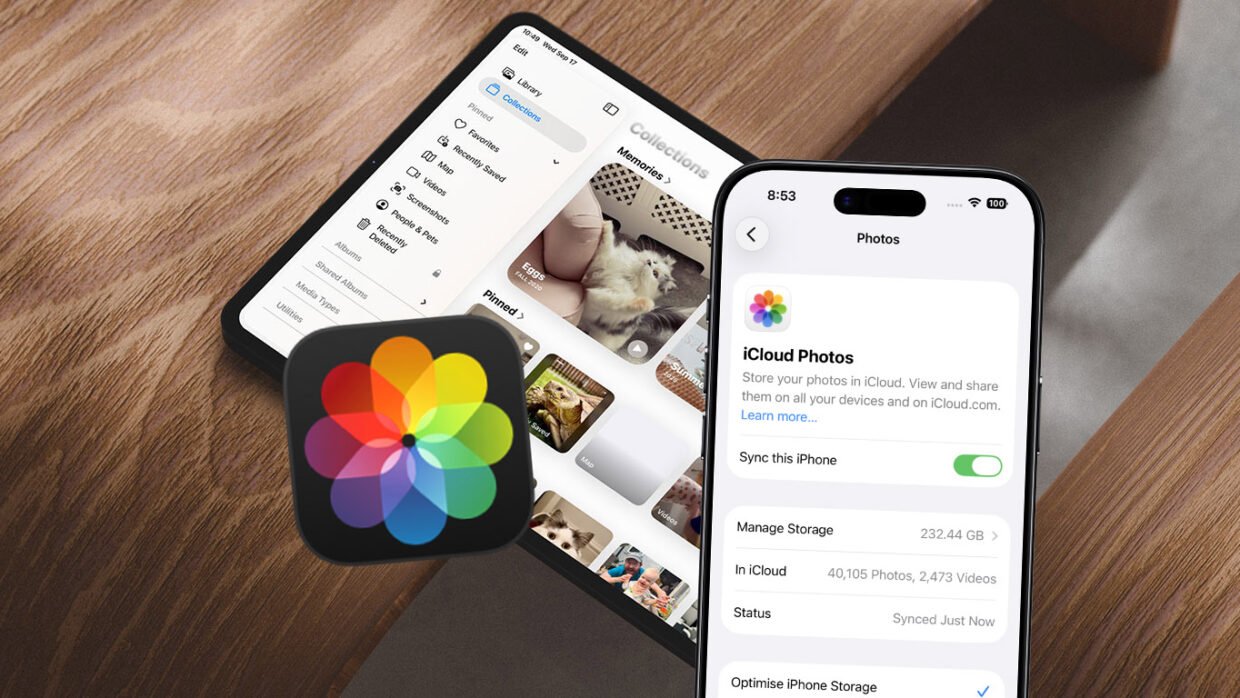
First, make sure both devices are signed into the same Apple Account, and that both are set to sync your snaps via iCloud Photos. On iPhones and iPads, open Settings, select your Apple Account, and go to iCloud > Photos. On a Mac, use the iCloud tab in the Photos app’s own settings. In all cases, you can choose to optimize local storage – meaning full-resolution images are kept in iCloud and downloaded on demand – or keep all originals on your device.

The latter option can take up a lot of room, and running out of iCloud storage will stop iCloud Photos (and iCloud in general) from syncing. I covered what to do if your iCloud storage is full in a previous troubleshooting column, and the simplest solution is to buy more storage. Note that you may also find that if you’re very tight on local device storage, syncing can become a problem. If in doubt, check iPhone Storage or iPad Storage, found within the General section of Settings.
If neither of those is the culprit, make sure the relevant lights on Apple’s System Status page are green. And make sure your own connectivity to the internet is solid. Huge photos and videos can take a long time to upload from your iPhone, especially on slower connections.
I’ve also found that Apple devices sometimes need a little “nudge” to sync new photos. In fact, by “sometimes,” I mean “annoyingly often.” To check if this is what’s causing your problems, open the Photos app on your iPhone, tap Collections, and then tap your profile picture at the top-right of the screen. (If you’re still running iOS 18, you don’t need to go into Collections.)

You’ll see the current sync status below your name and photo/video count. When your device is low on power, this is sometimes automatically paused. And, frankly, under various other less obvious scenarios, syncing can be paused too. When that happens, you might be told your device is “optimizing system performance” or something similar. You can override this by tapping Sync Now. As of iOS 27, Apple has added a Sync Immediately option, designed to force this approach – see above. Although do note that this functionality may also pause when your iPhone is very low on power.
If none of that works, a final throw of the dice can be the ol’ “turn everything off and on again” trick. When the entire sync system has gummed up, that old solution can be the one that fixes everything.