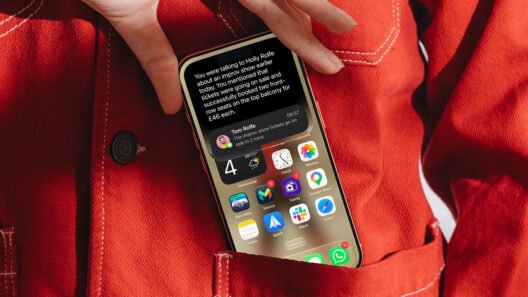

- How to set up Siri AI and find the new app
- What you can actually do inside it
- How to manage and delete your conversations
For fifteen years, Siri has been a voice with no home – you’d summon it, get a one-off answer, and it would vanish again. iOS 27 changes that, with a dedicated Siri app built for the kind of back-and-forth conversation more familiar to users of AI assistants like ChatGPT or Claude.
This feature is only available on devices that meet the requirements for Siri AI and have opted in. If you skipped the setup prompt, go to Settings > Siri, tap Turn On Siri, then Try the new Siri. Once registered, you’ll find the new Siri app waiting on your Home Screen. It’s surprisingly plain-looking considering the bold redesign Siri AI has undergone elsewhere.
Speaking to Siri
Tap the New Chat button in the bottom right to start a conversation. Here, you can type anything you like and Siri will reply in a chat bubble just like talking to a friend in Messages. You’ll see a conversational response with sources listed in a bubble where necessary. You can tap any of these to read the original source to verify things for yourself in more detail.

Siri will remember past responses in the same chat so you can have a flowing, ongoing discussion – for example, I asked when the next Apple event was and followed up later with a request to add it to my calendar. Siri understood the context and created the event. And everything syncs via iCloud, so a conversation started on iPad picks up right where you left it on iPhone.
If you prefer to speak aloud, tap the mic button and start speaking when you see the glowing Siri bubble appear, then wait for a response. It can take a few tries to get used to the timing so you don’t end up talking over one another!
Managing your chats
The main screen has a search button for old chats, plus a toggle between a plain list view and a slightly nicer-looking grid view. Press and hold any conversation to pin, rename, or delete it. Some of those items are also available with a swipe from the list view.
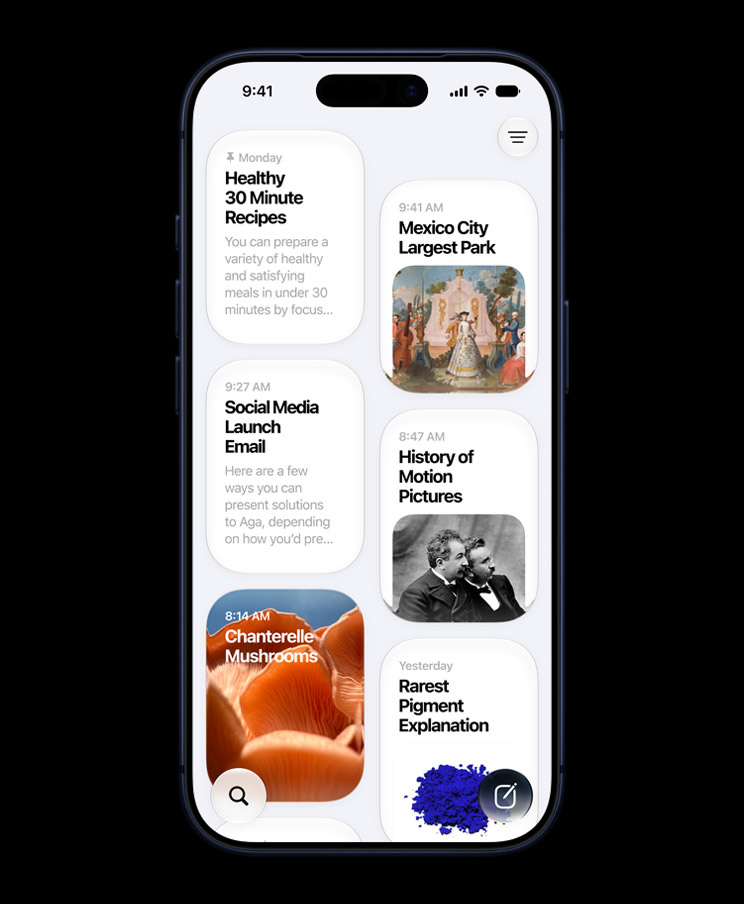
History syncs across your devices by default. To change how long it sticks around, go to Settings > Siri > Keep Conversations and choose 30 days, one year, or forever. Quick one-off requests like setting a timer don’t get saved regardless. While you’re in this section of Settings, you might also want to tweak the other Siri App options to your preference.
Note that Siri won’t remember things across different conversation threads – as ever, Apple is prioritising privacy here as best as possible. But it does have the ability to act inside other apps, not just talk about them. You can send photos to someone, add a calendar event, or handle a chained request like getting directions with a stop added along the way. That’s the real difference compared with other AI agents, which can generally only see what you paste into the chat.